



Looking for a fast and free Multi-Function Photo Crop Tool Online for Quick Editing tool? You’ve come to the right place. Our online image cropper makes it simple to perfectly resize and cut any photo for social media, print, or web use in just a few clicks
Advanced Image Crop Tool
Upload, crop, rotate and download high-quality images
Select Image Source
Drag & drop an image here or click to browse
Dropbox integration coming soon
Google Drive integration coming soon
OneDrive integration coming soon
Processing image...
Freeform Mode: Click to add points, double-click to complete shape
Lock Outside Mode: Drag the image behind the crop area to reposition
Handles Locked: Only selected handles can be used to resize
Crop Shape
Drag Mode
Lock Outside: Drag image behind crop area
Crop Area Handles Lock
Click handles to lock/unlock. Red = locked
Social Media Sizes
Crop Type
Crop Size Scale
Border Options
Rotation
Export Quality
Export Format (PNG recommended for transparency)
Key Features Implemented
Upload Interface: Drag-and-drop or click-to-upload functionality
Crop Area Selection:
- Square, circle, freeform and many other crop shapes
Draggable/resizable crop area with visual handles
Rotation: 0-360° rotation with slider control
- Social media size selection like YouTube, Facebook, LinkedIn etc
- Crop type Inside/Outside cropping
- Border Variation plain, cut, without border…
- Export Options: Download in PNG, JPEG, JPG, and WEBP formats
Responsive Design: Works on both desktop and mobile devices
Client-side Processing: All operations happen in the browser
How to Use
Upload an image by dragging and dropping or clicking the upload area
Select your desired crop shape ( square, circle, freeform or more)
Adjust the crop area by dragging the handles
Rotate the image using the rotation slider if needed
Applying cropping
Select your desired export format
Click “Download Cropped Image” to save your edited image
- To improve Image quality use Image Enhancer
- Best Image size reduction use our Image Compression tool
Why a Multi-Function Photo Crop Tool Online for Quick Editing Matters Today
The Multi-Function Photo Crop Tool Online for Quick Editing has quickly become one of the most essential tools for creators, students, professionals, and everyday users. Whether you want to crop a photo to exact size online without losing quality, prepare an image for social media, or adjust a document photo for ID verification, a fast and reliable online crop tool makes the entire process simple.
In 2025, visual content is everything — social media, e-commerce, resumes, official documents, thumbnails, banners, ads. Every platform demands a specific width and height, and cropping by guesswork wastes time. That’s exactly why this powerful tool on Toolxi.com exists: to help users crop photos in seconds with perfect precision.
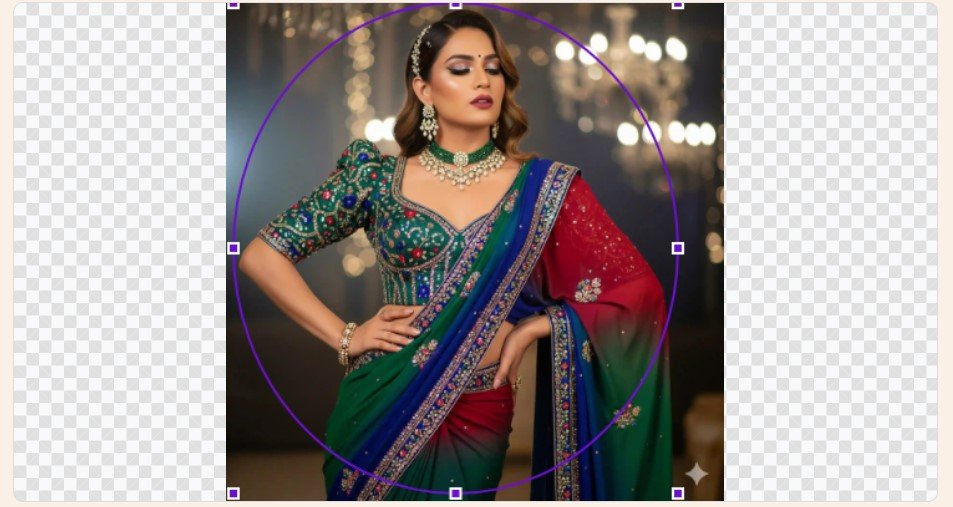
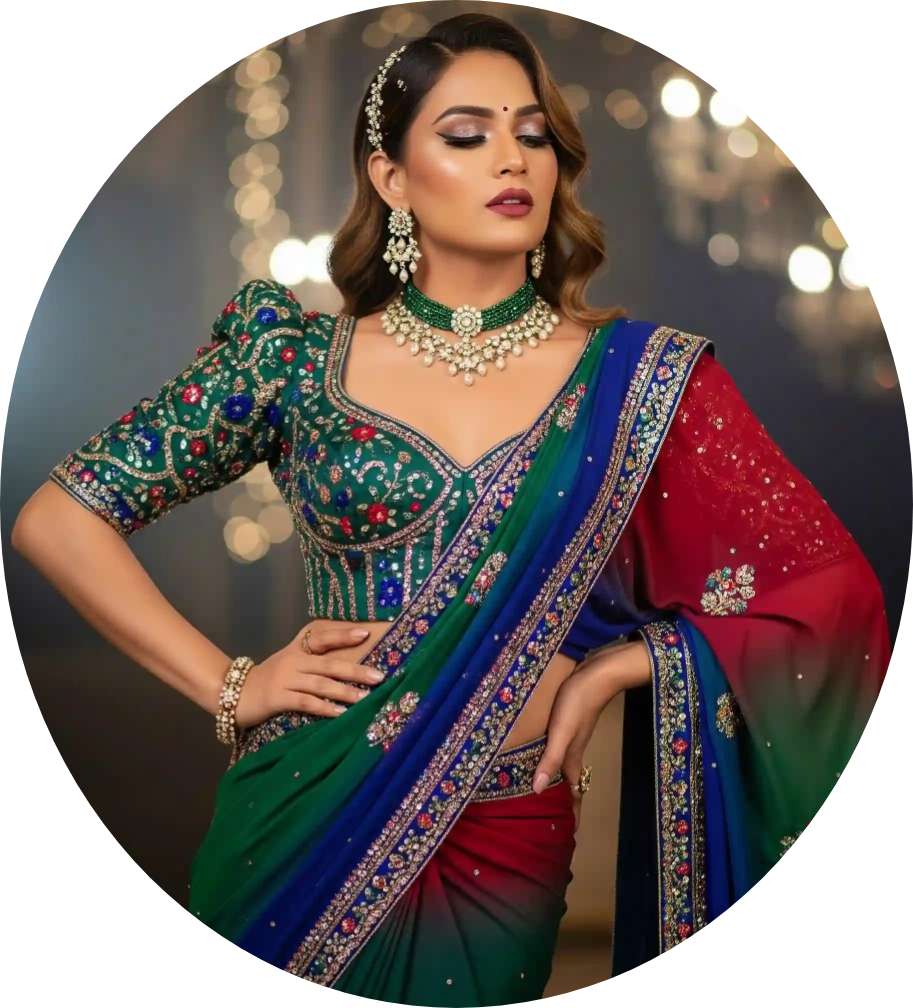
What Makes This Multi-Function Crop Tool Better Than Others?
1. Crop Images to Any Exact Width & Height (Pixel Perfect)
Most cropping tools only let you drag a box manually. But with Toolxi’s solution, you can crop image to specific width and height online free.
You simply enter dimensions (like 1080×1920, 820×312, 1:1, 4:5, 16:9) and the tool automatically adjusts.
This feature is especially helpful for:
Passport photos
PAN/Aadhaar/KYC documents
Facebook & Instagram posts
YouTube thumbnails
Website banners
Marketplace product photos
2. Crop Photos for Any Social Media Platform Instantly
If you’re searching for the best image cropping website for social media photos, you’re in the right place.
This tool includes preset sizes for:
Instagram posts, reels, stories
Facebook cover photo
LinkedIn profile picture
YouTube thumbnail
Pinterest pins
X (Twitter) banners
TikTok video covers
No more checking size charts — it’s already built-in.
To understand why accurate image sizing matters, you can check the official specs from Instagram Help Center or Facebook Blueprint (dofollow external authority).
For example:
https://www.facebook.com/business/ads-guide
3. Multi-Function Cropping Options in One Simple Tool
This tool is not just for basic cropping — it’s a complete image adjustment solution.
You can:
Crop
Rotate
Flip
Zoom
Adjust frame
Select preset ratios
Create custom dimensions
Prepare profile photos and documents
This makes it the best online multi functional cropping for profile photos and documents, especially when you need fast editing at school, office, or while applying online. If you ever need to crop images into a perfect circle for profile pictures, you can also try our Circle Crop Image Tool here → https://toolxi.com/circle-crop-image”
4. Crop Photos Without Losing Image Quality
Most beginners struggle with this question:
“How do I crop a photo to exact size online without losing quality?”
Good news — Toolxi’s tool maintains:
Sharpness
Resolution
Pixel clarity
The cropping algorithm uses modern image-handling principles similar to those explained by Adobe Photoshop guidelines:
https://helpx.adobe.com/photoshop/using/crop-straighten-photos.html
This ensures your image stays clean and professional even after resizing. For clean and without water mark image generate use our tool free https://toolxi.com/free-ai-image-generator tool
5. No Installation Required – Works on Phone, PC, Tablet
You don’t need heavy software like Photoshop, GIMP, or paid apps.
Just upload → crop → download.
Fast, user-friendly, and doesn’t occupy storage.
6. Simple Tool to Crop Pictures Into Custom Dimensions Online
Some users just want a simple interface without ads or confusing controls. Toolxi’s crop tool is built exactly for that.
This tool suits:
Students
Influencers
Freelancers
Business owners
Designers
Anyone wanting quick editing
You simply upload → set height/width → crop.
7. Secure & Private Image Processing
Images are never stored. Everything is processed in the browser.
For users who worry about privacy, this is safer than many popular apps.
Even Cloudflare explains the importance of secure, client-side processing:
https://www.cloudflare.com/learning/privacy/what-is-online-privacy/
Why Toolxi Is the Best Image Cropping Website for 2025
Toolxi is gaining popularity because it focuses on speed, simplicity, and multi-function features.
Compared to other editors, it loads faster, supports more formats, and doesn’t require downloads.
It’s especially helpful for:
Bloggers
Teachers
Students
Social media creators
Business owners
Photographers
Whatever your need, Toolxi’s crop tool fits perfectly.
Why Image Cropping is Your Secret Weapon for Great Photos
We’ve all been there. You take what you think is the perfect picture, only to find later that a random stranger is photobombing the edge of the frame, or the main subject is lost in a sea of background. It’s frustrating, but the solution is often simpler than you think. The secret isn’t just a fancy camera; it’s mastering the art of image cropping.
Cropping is more than just a quick fix; it’s a powerful creative tool. It’s the digital equivalent of focusing your attention, allowing you to guide the viewer’s eye exactly where you want it to go.
The Power of a Simple Crop
Think of cropping as your photo’s final edit. It’s your chance to:
Improve Composition: Use the rule of thirds to create a more balanced and engaging image. Simply position your subject off-center for a more dynamic feel.
Remove Distractions: Seamlessly eliminate that stray coffee cup in the background or the extra space above a person’s head that adds nothing to the story.
Change the Focus: Transform a wide landscape shot into a captivating portrait by zooming in on the most interesting detail.
In short, a good crop can turn a mediocre snapshot into a striking photograph.
Your Toolkit: More Than Just Cropping
While cropping is our star player, it rarely works alone. It’s part of a wider team of essential photo edits. When you use a free photo resizer or an online image resizer, you’re often getting access to a whole suite of tools.
Here’s how they work together:
Crop First: Start by framing your shot perfectly. Crop image online to get the composition you want. This is where you define your story.
Resize Second: Once you’re happy with the frame, you might need to resize image dimensions. This is crucial for fitting pictures into a website template, a social media post, or sending via email without overwhelming the recipient’s inbox.
Compress Last: Finally, compress image size to make the file smaller without noticeably losing quality. This step is a lifesaver for keeping your websites fast and your storage space tidy.
Getting Started is Easy
You don’t need expensive software to become a cropping pro. A quick search for a free photo resizer will lead you to countless user-friendly websites that let you crop image online, resize, and compress in just a few clicks. These tools are designed for everyone, not just professional photographers.
So, the next time a photo doesn’t feel quite right, don’t delete it. Take a moment to crop it. You might be surprised at the masterpiece hiding within the frame.
Key Feature
Lock Outside Mode:
Added a new “Drag Mode” section with two options: “Move Crop” (default) and “Lock Outside”
When “Lock Outside” is selected, the crop area becomes fixed and users can drag the image behind it
Added visual indicator showing when Lock Outside mode is active
Features of Lock Outside Mode:
Crop area handles are hidden when in lock outside mode
Users can drag anywhere on the canvas to reposition the image
The image moves smoothly behind the fixed crop area
Image movement is limited to keep it visible within the canvas
Works with all crop shapes (square, circle, heart, etc.)
Visual Indicators:
Added a yellow indicator bar showing “Lock Outside Mode: Drag the image behind the crop area to reposition”
Cursor changes to “all-scroll” when in lock outside mode
Crop area border remains visible but handles are hidden
Integration with Existing Features:
Lock outside mode works with all shapes (including improved concave, zig-zag, cloud, and drop shapes)
Image offset is properly accounted for during cropping
Reset button resets both image position and crop area
Works with rotation and scale adjustments
This feature is particularly useful for users who want to:
Position a specific part of an image within a crop shape
Keep a consistent crop size while adjusting image positioning
Fine-tune which part of an image appears within a shaped crop
. Crop Area Handles Lock Feature 🔒
Added a new “Crop Area Handles Lock” section with individual handle controls
Users can click on specific handles (TL, T, TR, L, R, BL, B, BR) to lock/unlock them
Locked handles appear in red and cannot be used for resizing
Added “Lock All Handles” and “Unlock All” buttons for quick control
Visual indicator shows when handles are locked
Works with all crop shapes


Frequently Asked Questions About Image Cropping
Q1: What exactly is image cropping?
Image cropping is the process of removing unwanted outer areas from a photograph. Think of it like using a pair of scissors to trim away the edges of a physical photo to improve the composition or focus on the most important subject.
Q2: Why should I crop my images?
Cropping is one of the easiest ways to instantly improve your photos. It helps you:
Change the focus to your main subject.
Remove distractions like photobombers or cluttered backgrounds.
Improve composition by applying the rule of thirds.
Change the aspect ratio to fit social media platforms (e.g., making a square post for Instagram).
Q3: What’s the difference between cropping and resizing an image?
This is a common confusion!
Cropping changes the composition by cutting away parts of the image, which also reduces the total pixel dimensions (e.g., from 4000×3000 to 2000×1500).
Resizing scales the entire image up or down without removing any content, changing the file dimensions but keeping the same scene.
Q4: Can I crop an image for free online?
Absolutely! You don’t need expensive software. Many free online tools allow you to crop image online quickly. Just search for a “free photo resizer” or “image cropper,” upload your picture, select the area you want to keep, and download the result.
Q5: Will cropping an image reduce its quality?
Cropping reduces the number of pixels in your image, so if you crop a very small section and then try to enlarge it, it may appear pixelated or blurry. However, for most uses like sharing on social media or websites, the quality remains excellent as long as you don’t need to enlarge the cropped version significantly.
Q6: How is cropping related to compressing an image?
They are often done together in a workflow. You would first crop the image to get the perfect frame. Then, you might resize image dimensions to make it suitable for a specific platform. Finally, you would compress image size to reduce the file size for faster website loading or easier emailing.
Q7: What is the best aspect ratio for cropping?
The “best” ratio depends on where you’ll use the image:
Social Media Profile Pics: 1:1 (Square)
Instagram Feed: 4:5 (Portrait) or 1:1 (Square)
Facebook Cover Photo: 16:9 (Landscape)
Pinterest Pins: 2:3 (Portrait)
Most free cropping tools let you select these ratios preset.